Boost productivity fast by stabilizing your network: run Cat6 to your desk, move the router centrally, and use 5/6 GHz or mesh with wired backhaul to cut jitter. Automate circadian lighting (4000–5000K day, 2700–3000K night) and add monitor bias light to reduce eye strain. Control comfort with smart zoning, CO₂ alerts (>1,000 ppm), and 40–60% humidity. Use smart plugs for shutdown schedules, plus a close-talk mic and panels for clearer calls. Keep going to see the best setup order.
Smart Home Office Wi‑Fi and Ethernet Basics
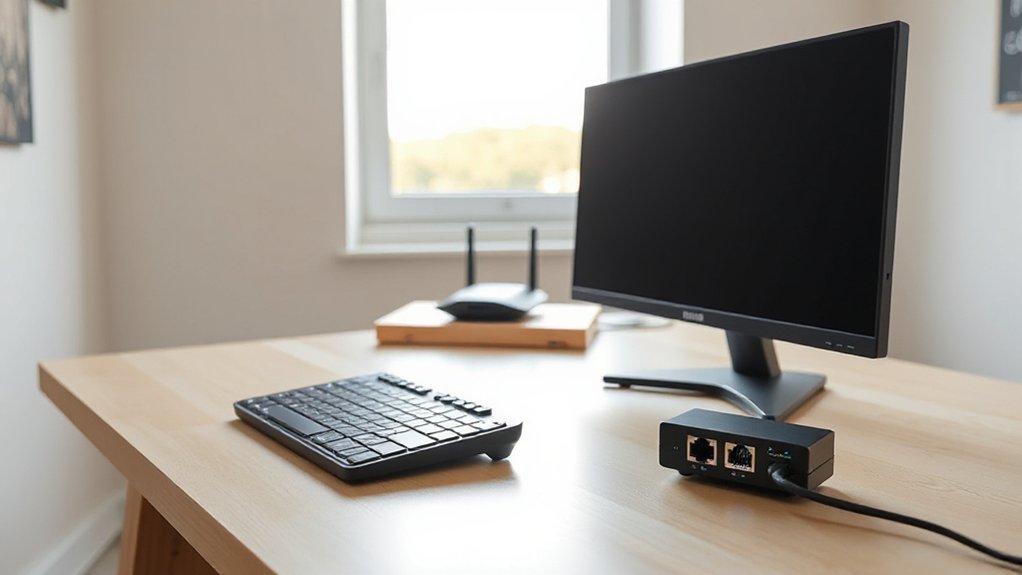
If your home office network isn’t stable, every video call, cloud sync, and large file transfer slows down or drops. Start by measuring baseline performance: run three speed tests near your desk and one in the next room, then log latency and packet loss.
If signal varies more than 20%, reposition your router centrally, elevate it, and switch to a clearer 5 GHz or 6 GHz channel. For dead zones, deploy a Wireless mesh with wired backhaul when possible to keep throughput consistent.
For your highest-value devices, prioritize Ethernet wiring: a single Cat6 run to your desk can cut jitter and prevent Wi‑Fi congestion.
Finally, segment work devices on a dedicated SSID and enable QoS for conferencing.
Smart Home Office Lighting That Matches Your Day
Set circadian lighting schedules so your office automatically shifts from cool, high-lux light in the morning to warmer tones at night. This supports focus early and easier wind-down later.
Add task-focused brightness control so you can hit the right illumination for calls, reading, and detailed work without wasting energy.
Reduce glare by repositioning fixtures, using diffusers, and matching screen placement to light angles. This helps cut eye strain and keeps your workspace comfortable all day.
Circadian Lighting Schedules
As your body shifts from alertness to wind-down across the day, circadian lighting schedules let your home office lighting track that rhythm with measurable impact: higher blue-enriched, cooler light in the morning and midday can support focus and reaction time, while warmer, dimmer light in the late afternoon and evening reduces melatonin suppression and eye strain.
To implement it, you’ll program your system around your Circadian rhythm and Light timing: start cool/bright at your first work block, maintain neutral white through peak productivity hours, then shift warmer two to three hours before your intended sleep.
Use sunrise-synced automation on workdays and a softer weekend profile to prevent “social jet lag.” Tie schedules to calendar events so late meetings don’t push stimulating light into your evening.
Review energy and sleep metrics monthly and adjust.
Task-Focused Brightness Control
Even with a solid circadian schedule, you’ll get better output when brightness adapts to the task in front of you. Set work modes that switch lux levels in one tap: 300–500 lux for email and calls, 750–1,000 lux for spreadsheets, reviews, and detailed writing.
Use adaptive light scenes that raise output during high-cognitive blocks, then drop it for admin work to reduce fatigue and keep your eyes relaxed.
Automate it with triggers you already have: calendar focus time, app launches, or a desk-occupancy sensor. Pair a dimmable overhead with a task lamp so you can deliver focus illumination exactly where you need it without lighting the whole room.
Track results: compare error rates, time-on-task, and end-of-day headache frequency weekly.
Glare Reduction Strategies
Task-based lux targets help, but glare can still spike eye strain and slow you down when light bounces off monitors, glossy desks, or white walls.
First, reposition: place your display perpendicular to windows and keep your primary lamp 30–45° off-axis to cut screen glare.
Next, add sunlight filtering with smart shades; schedule 30–60% closure during peak sun and reopen for daylight later.
Choose matte finishes: a matte monitor film and desk pad reduce specular reflections.
Use indirect lighting: bias light behind the monitor at ~10% of screen luminance to balance contrast and curb pupil fatigue.
Finally, tune color: 4000–5000K by day, 2700–3000K after dusk, so glare doesn’t feel harsher.
Smart Home Office Noise Control (Mics, ANC, Panels)
When background noise creeps into calls, you can fix it fast by combining the right mic setup, active noise cancellation, and targeted acoustic treatment.
Start with a close-talk dynamic mic on a boom arm, keep it 2–4 inches from your mouth, and set input gain so peaks hit around -12 dB. If you’re using noise canceling microphones, enable high-pass filtering to cut keyboard thumps and HVAC rumble without thinning your voice.
Add ANC headphones to reduce fatigue and keep you from raising your volume.
Then treat the room: place acoustic panels at first-reflection points (beside and behind your monitor) and add a thick rug to cut reverberation.
You’ll sound clearer, and meetings run faster.
Smart Home Office Climate Control for All-Day Comfort
You’ll stay focused longer when your office temperature, airflow, and humidity stay within tight ranges all day. Set up a smart thermostat with room-by-room zoning, then use air-quality monitors to track CO₂, VOCs, and PM2.5 so you can trigger ventilation exactly when readings slip.
Add automated humidity control to hold a steady target band, reducing fatigue, static, and that dry-throat feeling during back-to-back calls.
Smart Thermostats And Zoning
Even if your home office shares a thermostat with the rest of the house, you can still lock in all-day comfort by adding a smart thermostat and zoning. Smart thermostats learn your schedule, trim HVAC runtime, and keep temperatures steady during deep-work blocks; many users see meaningful energy savings when set up with occupancy and geofencing.
Pair that control with zoning strategies so you’re not heating or cooling unused rooms. Start by prioritizing your office as Zone 1, then add smart vents or dampers to balance airflow and reduce hot/cold spots.
Set tighter temperature bands during meeting hours and wider bands overnight to cut cycling. Use room sensors to verify performance, then adjust setpoints weekly based on real readings. You’ll stay comfortable, focused, and cost-efficient all day.
Air Quality Monitoring Devices
Temperature control solves only half the comfort equation—air quality can quietly drag down focus and leave your office feeling stale.
Air quality sensors give you objective metrics (PM2.5, CO2, temperature trends) so you can spot when cognition-killing stuff rises during calls, printing, or cooking nearby.
Place a monitor at breathing height near your desk, then set threshold alerts in your smart home app. When CO2 climbs past 1,000 ppm, you’ll know it’s time to increase fresh-air intake or open a window.
Add VOC detectors to flag off-gassing from new furniture, cleaners, or 3D printing; you can switch to low-VOC products and ventilate immediately.
Track weekly reports to validate improvements and keep your workspace consistently sharp.
Automated Humidity Control
Because relative humidity directly affects perceived temperature, respiratory comfort, and equipment health, automated humidity control upgrades your home office from “fine” to consistently productive.
Aim for 40–60% RH; below 30% dries eyes and sinuses, above 60% can encourage mold and musty odors.
Install humidity level sensors in your work zone and near exterior walls, then tie them to a smart humidifier/dehumidifier for closed-loop control.
Set rules: boost humidity overnight in winter, dehumidify during afternoon peaks in summer, and pause when windows open.
Add Indoor plant integration as a passive stabilizer, but use sensor data to verify impact.
You’ll protect laptops, reduce static shocks, and feel comfortable longer without overworking HVAC.
Automate Your Desk With Smart Plugs and Power
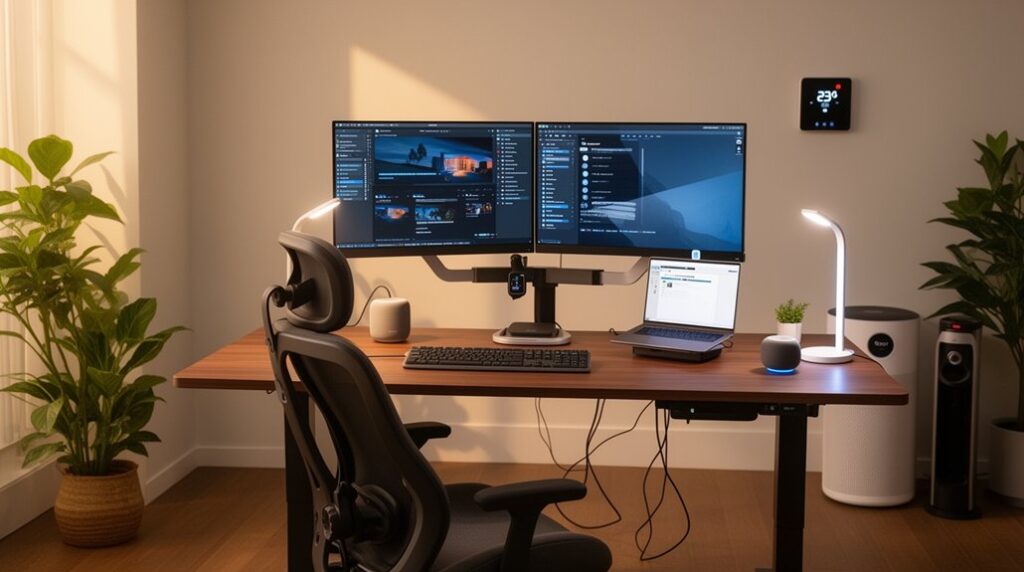
When you put smart plugs and a power-monitoring strip at your desk, you can automate device power, cut idle wattage, and control everything from your phone or voice assistant. Assign your monitor, task lamp, router, and chargers to labeled outlets, then schedule shutdowns after hours to eliminate vampire draw.
Use energy reports to spot top offenders and set auto-off rules when power dips below a threshold. Add voice command integration so you can start “Work Mode” hands-free, powering essentials in seconds.
Tie outlets to smart security systems: when you arm away, noncritical gear turns off; when you disarm, your setup boots automatically. You’ll reduce interruptions, lower monthly costs, and protect hardware from surges with a smart strip.
Smart Ergonomic Upgrades (Desk, Chair, Reminders)
If you sit for long stretches, smart ergonomic upgrades can cut fatigue and boost output by turning good posture into an automated routine. Start with a sit-stand desk that stores height presets, so you can switch positions fast and keep your monitor at eye level.
Pair it with a chair that tracks posture and alerts you when you’re slouching; even small angle corrections reduce neck strain and help you sustain focus. Add ergonomic accessories—split keyboard, vertical mouse, footrest—to keep wrists neutral and hips open.
Then set voice reminders from your smart speaker to adjust lumbar support, relax shoulders, and reposition your feet at set intervals. You’ll reduce discomfort-driven breaks and protect long-term performance.
Smart Home Office Routines to Stay Focused
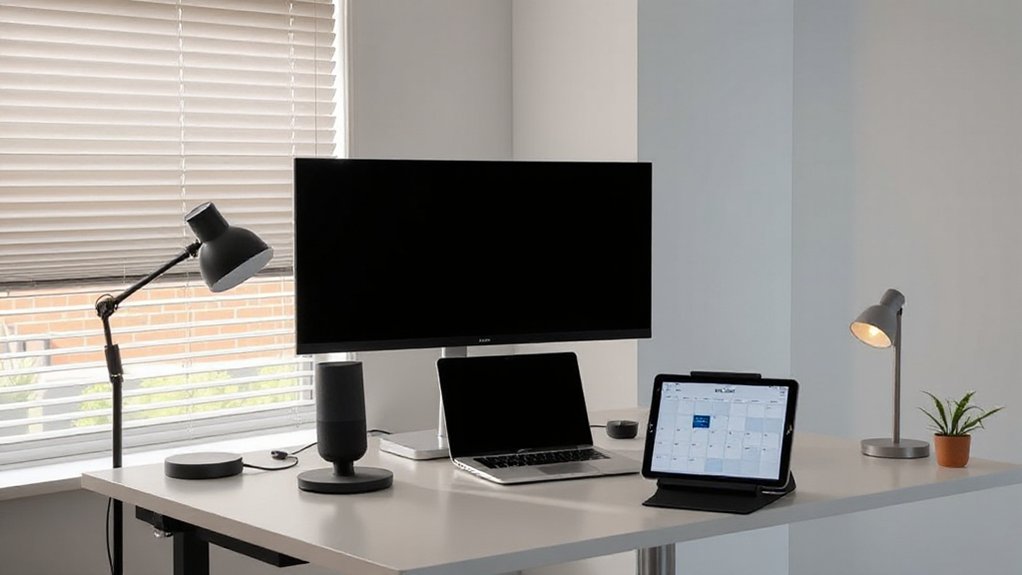
Although great gear supports your body, consistent focus usually comes from repeatable, automated routines. Set a “start-work” scene: lights to 5000K, thermostat steady, and noise reduction on. Trigger it via geofence or calendar so you don’t waste willpower.
Use app blockers tied to your focus timer; 25/5 or 50/10 cycles improve time management because breaks become scheduled, not impulsive.
Build a daily dashboard that pulls tasks from your PM tool, shows top three priorities, and logs completion time. Review that data weekly to spot overload and refine estimates.
Add a “shutdown” routine: sync notes, schedule tomorrow’s first task, dim lights, and mute notifications. You’ll protect mental clarity and end work cleanly.
Frequently Asked Questions
How Do I Secure Smart Office Devices From Hacking and Data Leaks?
Secure your smart office devices by enabling Encryption protocols, changing default passwords, and using unique credentials. You’ll segment Wi‑Fi, disable unused services, and enforce MFA. Schedule automatic Firmware updates, audit logs weekly, and back up encrypted data.
Which Smart Home Office Upgrades Work Best for Renters With Restrictions?
You’ll get the best renter-friendly upgrades with Portable gadgets and Temporary solutions: smart plugs, hubless bulbs, and peel-and-stick sensors. Start with Wi‑Fi6 mesh and a privacy camera cover—then watch your setup jump in reliability, fast.
Do Smart Office Devices Still Function During Internet or Power Outages?
Some still work, but you’ll lose cloud control without internet and everything stops without power unless you add backup power. You should prioritize offline-capable devices, local automation, and device durability; test outage runtimes quarterly for reliability.
How Can I Make Different Brands of Smart Devices Work Together Reliably?
You’ll get reliable cross-brand control by prioritizing Device compatibility (Matter/Thread/Zigbee), using a hub for Brand integration, standardizing routines, reserving IPs, updating firmware, and stress-testing automations weekly with logs and rollback plans.
What’s the Typical Monthly Cost Increase From Adding Smart Office Gadgets?
You’ll typically see a $5–$30 monthly cost increase, mainly from subscriptions, cloud storage, and added electricity; gadget expenses spike upfront. Audit device wattage, cancel unused plans, and bundle services to cap spend.
Conclusion
You’ve now got the blueprint for a smarter home office: lock in fast Wi‑Fi or Ethernet, tune lighting to your circadian rhythm, cut distractions with better audio and noise control, and keep temperature steady. Add smart plugs to automate power and pair ergonomic upgrades with reminder routines so you don’t drift. One useful benchmark: studies show distractions can cost you about 23 minutes to fully refocus—so every automation you set up pays back time daily.